
The Studio sidebar
The narrow bar on the far left is your main menu. Hover over an icon to see its name, or click it to open that area.
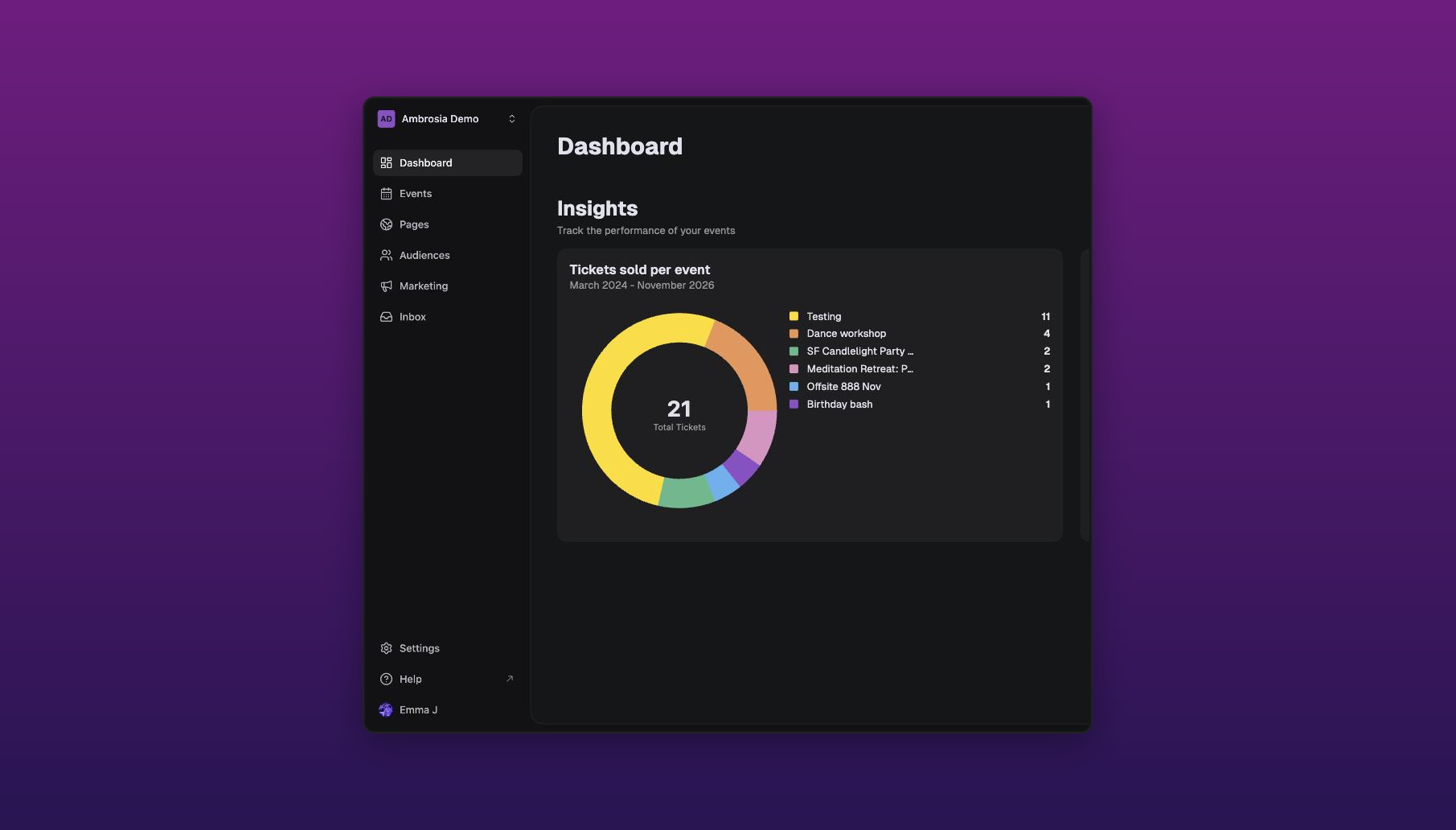
| Icon area | What you do there |
|---|---|
| Workspace switcher (your workspace's initials, top left) | Switch between workspaces, create a new one, or sign out |
| Dashboard | See tickets sold and revenue across your events |
| Events | Create and manage every event |
| Pages | Edit your public Organizer Profile and add event pages |
| Audiences | Manage contacts, subscribers, lists and sign-up forms |
| Marketing | Write and send email broadcasts, check delivery and monitor performance |
| Inbox | Read your message threads with Ambrosia |
| Settings (gear, bottom left) | Workspace settings, Terms of Service and liability waivers |
| Help | Opens the Ambrosia help center in a new tab |
| Account (your avatar) | Account settings and Sign out |
The event menu
When you open an event, the sidebar switches to that event's own menu, grouped into Setup, Promote, Pulse and Settings. Use Back to events at the top to return to your event list.

