
Overview
A payment plan lets attendees pay a deposit at checkout and the rest later. It's ideal for retreats, workshops and other higher-priced events.
Create a payment plan
- Open your event and go to Settings > Registration, then Checkout > Payment plans in the event settings menu.
- If the event doesn't have a plan yet, you'll see No payment plan yet. Click Create payment plan.
- Review the plan's rules (next section). A new plan starts with these defaults: all tickets, a $100 minimum order, tickets released after full payment, monthly installments split evenly, a 7-day collection deadline and manual review when a payment fails. Your changes save as you go.
- Click Activate. Until you do, the page shows Payment plan is not active and attendees won't see the option at checkout.
Tip: adding a deposit to a ticket price (Tickets, pricing, coupons and seating charts) also sets up a payment plan for that ticket.
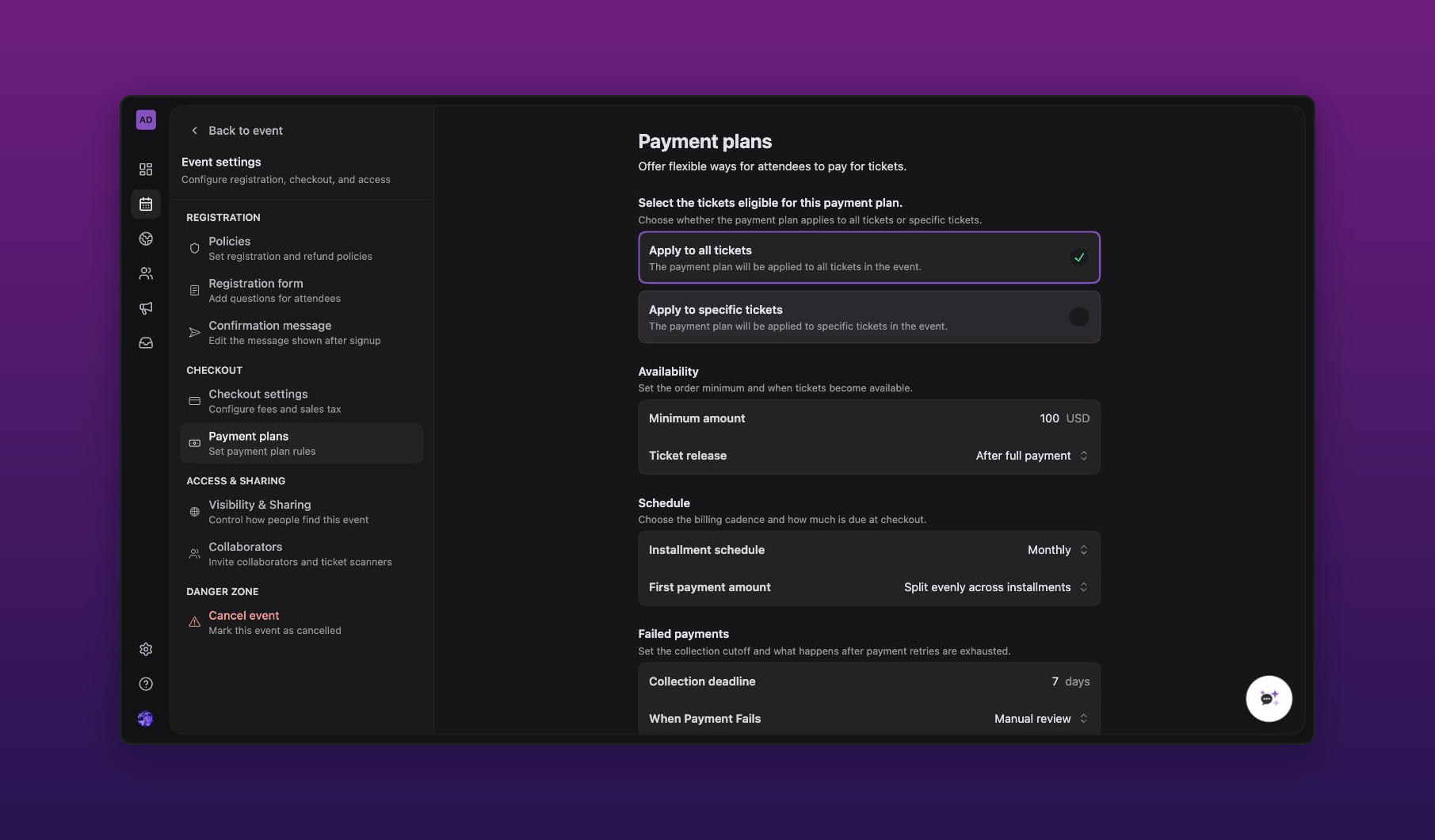
Set the payment plan rules
These are the settings on the Payment plans page, top to bottom:
- Eligible tickets: choose Apply to all tickets or Apply to specific tickets, then use the toggles to pick which tickets. Turning a ticket off also removes its deposit.
- Availability:
- Minimum amount: the smallest order that can use a payment plan.
- Ticket release: when attendees get their tickets, After first payment or After full payment.
- Schedule:
- Installment schedule: Monthly, Weekly or Biweekly.
- First payment amount: Split evenly across installments, a Fixed amount or a Percentage of total.
- Failed payments:
- Collection deadline: how many days you'll keep trying to collect.
- When Payment Fails, after 3 retries and a 1-day grace period:
| Option | What happens |
|---|---|
| Manual review | The order stays open and you decide what happens next |
| Auto-cancel after grace period | The order and tickets are cancelled automatically |
| Auto-cancel at collection cutoff | The order stays open until the collection deadline, then cancels if still unpaid |
Once you click Activate, the bottom of the page confirms the plan is live ("Payment plan is active at checkout"). Click Deactivate to switch it off.

