
Overview
The registration form is the set of questions attendees answer when they buy a ticket or RSVP. Open it from the event menu: Settings > Registration, then Registration form.
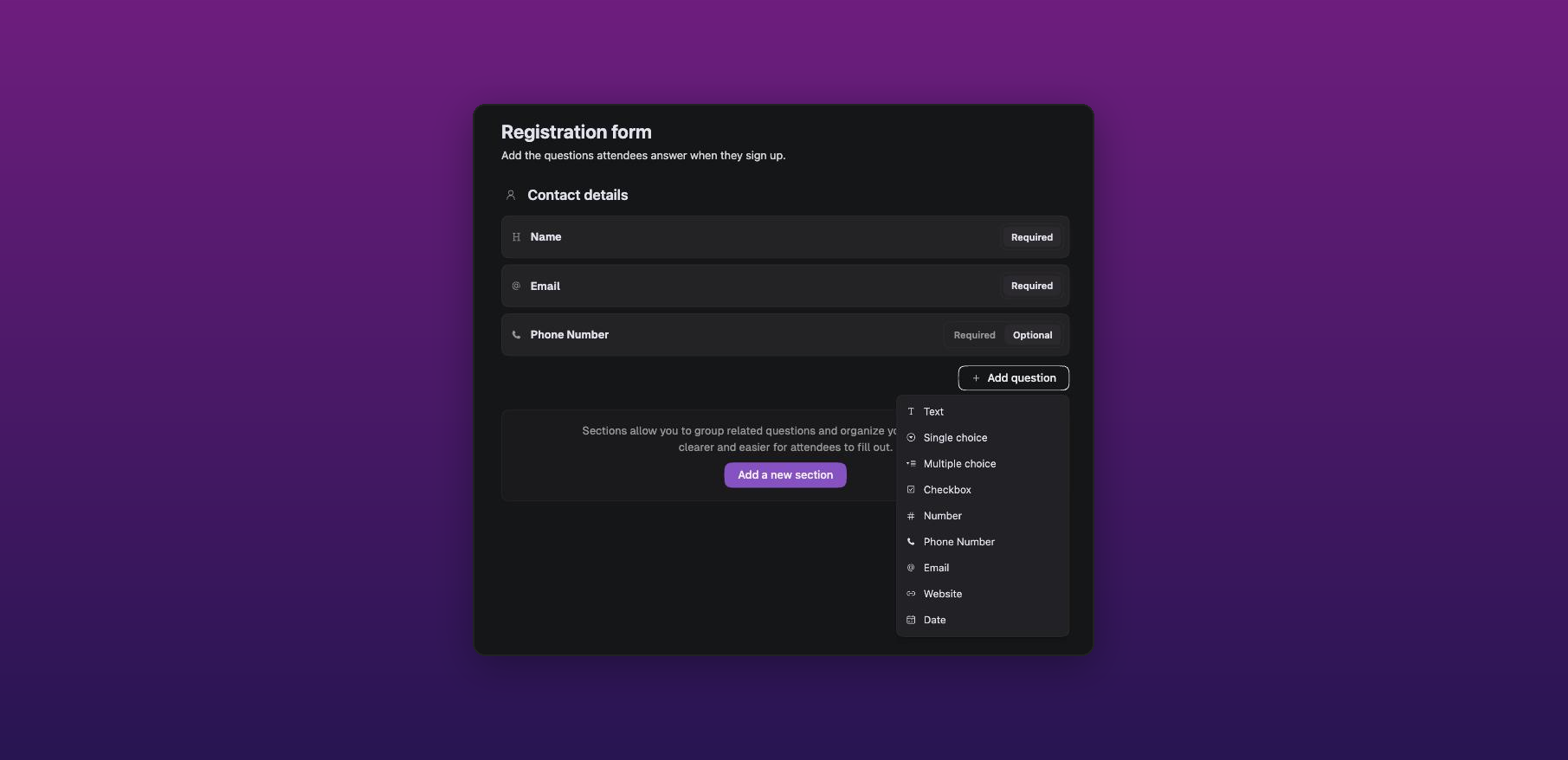
Every form starts with a Contact details section: Name and Email (always required) and Phone Number (click Required or Optional).
Add a question
- Click Add question and pick a type: Text, Single choice, Multiple choice, Checkbox, Number, Phone Number, Email, Website or Date.
- Type the Question.
- Set Requirement to Required (must be answered before checkout) or Optional.
- For choice questions, fill in each option and click Add option for more. Every option needs text before you can save.
- Click Create.
Organize your form
- Reorder questions by dragging the six-dot handle beside each one.
- Group questions by clicking Add a new section, for example "Dietary needs" or "Emergency contact". Each section has its own Add question button.
- Edit or remove a question by clicking its six-dot handle and choosing Edit question or Remove from form.
Answers show up as columns in your Attendees table (Running your event).

