
Overview
You write your Terms of Service and liability waivers once, save them to your workspace, and attach them to any event in its Policies settings. By default, no organizer Terms of Service or waiver is attached to an event. Once you attach one, attendees must agree to it before they buy a ticket or make a reservation.
Your Terms of Service is also the right place to state your own cancellation and refund policy. Ambrosia's default is "no refunds", and a custom policy only applies if it's clearly shown to attendees (see Ambrosia policies, Ambrosia policies).
Create a Terms of Service or waiver
- Click the gear icon (Settings) at the bottom of the left sidebar.
- Under Policies, choose Terms of Service or Liability Waivers. You'll see a list of what you've already saved, with when each was last updated.
- Click Create Terms of Service or Create Liability Waiver.
- Click Untitled Terms of Service (or Untitled Liability Waiver) at the top and type a name, like "Retreat Cancellation Policy".
- Click the body and write your text. Type / for headings, lists, quotes, dividers and more.
- Click Back to Terms of Service (or Back to Liability Waivers) when you're done. Your work saves as you type.
Tip: a new document is saved the moment you click Create, even before you type. If you open one by accident, go back to the list, hover over it, click the ... button that appears and choose Archive.
To edit a saved document, click its name in the list.
Apply it to an event
- Open your event and go to Settings > Registration > Policies.
- Under Policy documents, open the Terms of service dropdown and pick a document. To write a new one on the spot, choose Create new terms of service.
- Open the Liability waiver dropdown and pick your waiver.
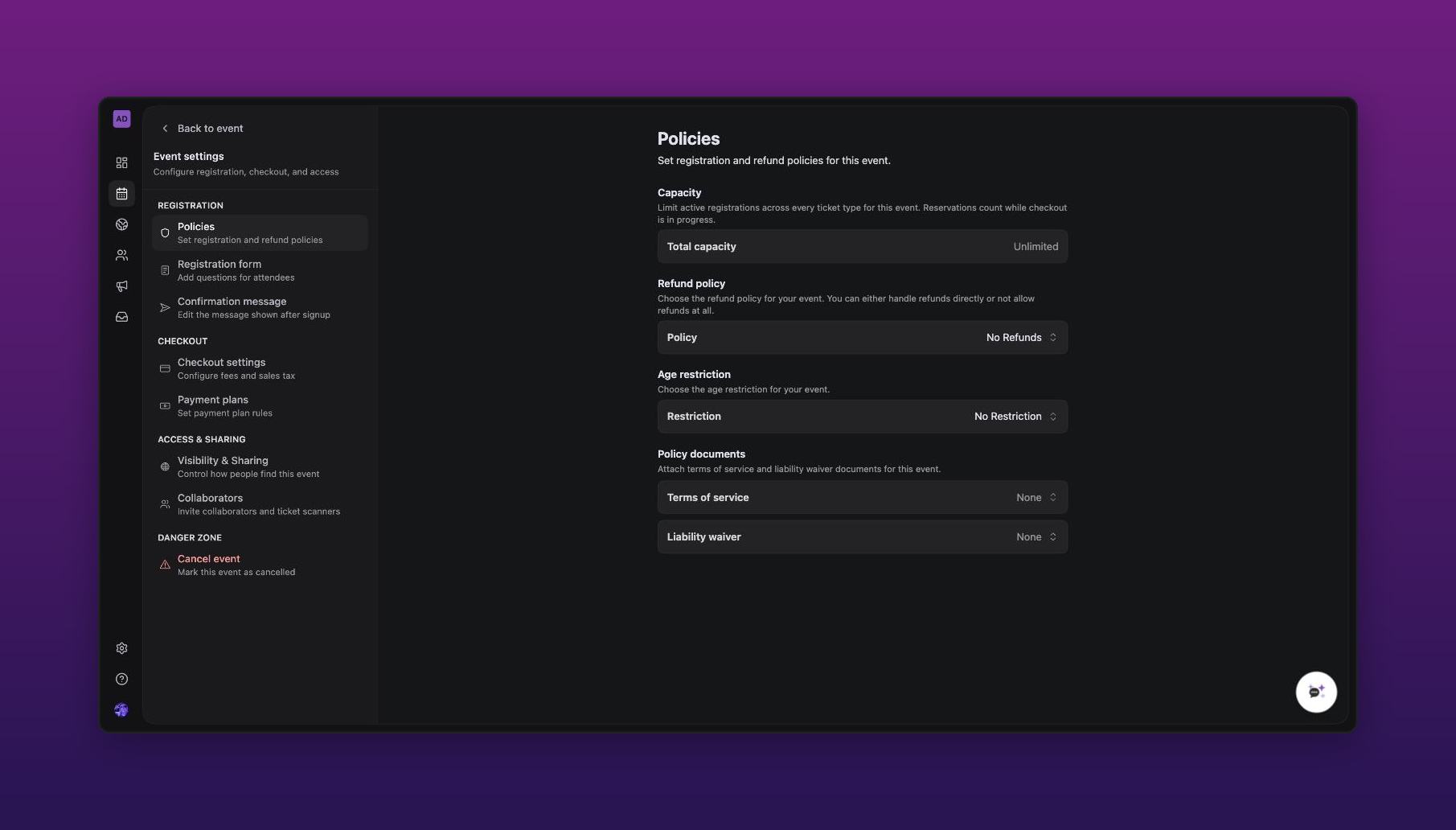
The same Policies page is also where you set the event's Total capacity (a limit on active registrations across all ticket types; in-progress checkouts count), Refund policy and Age restriction.

