
Overview
When your page, tickets and settings look right, it's time to go live. Before publishing, click View event at the top right to preview the page attendees will see.
Publish
- Click Review & Publish in the yellow banner at the top of any event page.
- Visibility: choose Public (shown on your public profile; anyone can access it) or Link-only (hidden from search; anyone with the link can access it).
- Password protection (optional): turn it on to require a password to open the event page.
- Event URL: check or customize the end of your event's web address so it's easy to remember and share.
- Click Publish.
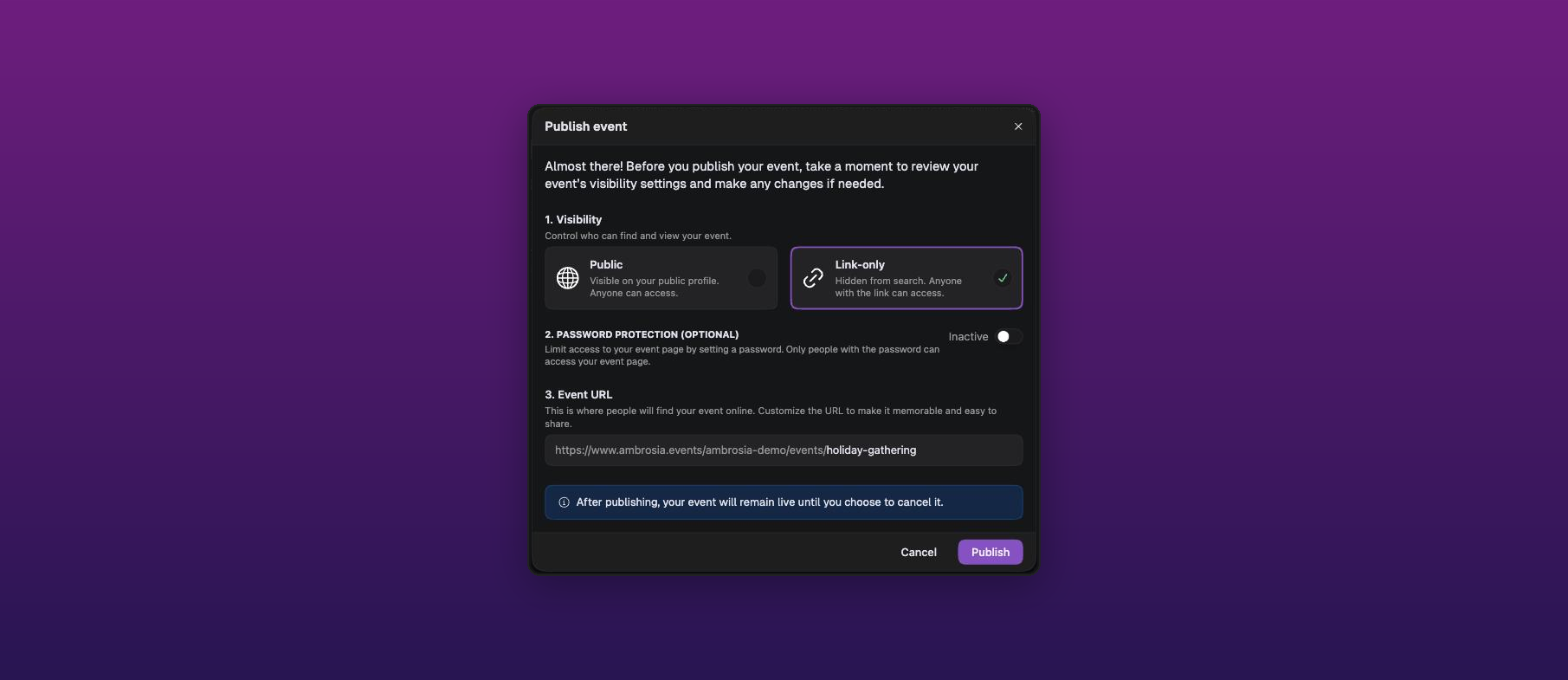
Once published, your event stays live until you cancel it. Remember that each ticket also needs its own Publish (Tickets, pricing, coupons and seating charts) before people can buy it.
Change visibility later
Go to Settings > Access & sharing > Visibility & Sharing to change visibility, password protection or the event URL. Add Search keywords (like "live music, food vendors, summer festival") to help search engines understand your event. Search engines can take several days to pick up changes.
Share it
Click the arrow next to View event for:
- Download QR code: for posters and flyers so people can scan to buy tickets.
- Copy event link: copies the link to your clipboard.
For email invitations to your community, see Marketing: email creator and broadcasts.
Cancel an event
Go to Settings > Danger zone > Cancel event. Cancelled events move to the Cancelled tab in your event list.
Please review our Ambrosia Event Cancellation Policies by Organizer (Ambrosia policies) for your responsibilities when cancelling events with confirmed attendees.

