
Overview
Open Events in the left sidebar and click Create event. You'll see a single setup page. Fill in what you know now; you can change any of it later.
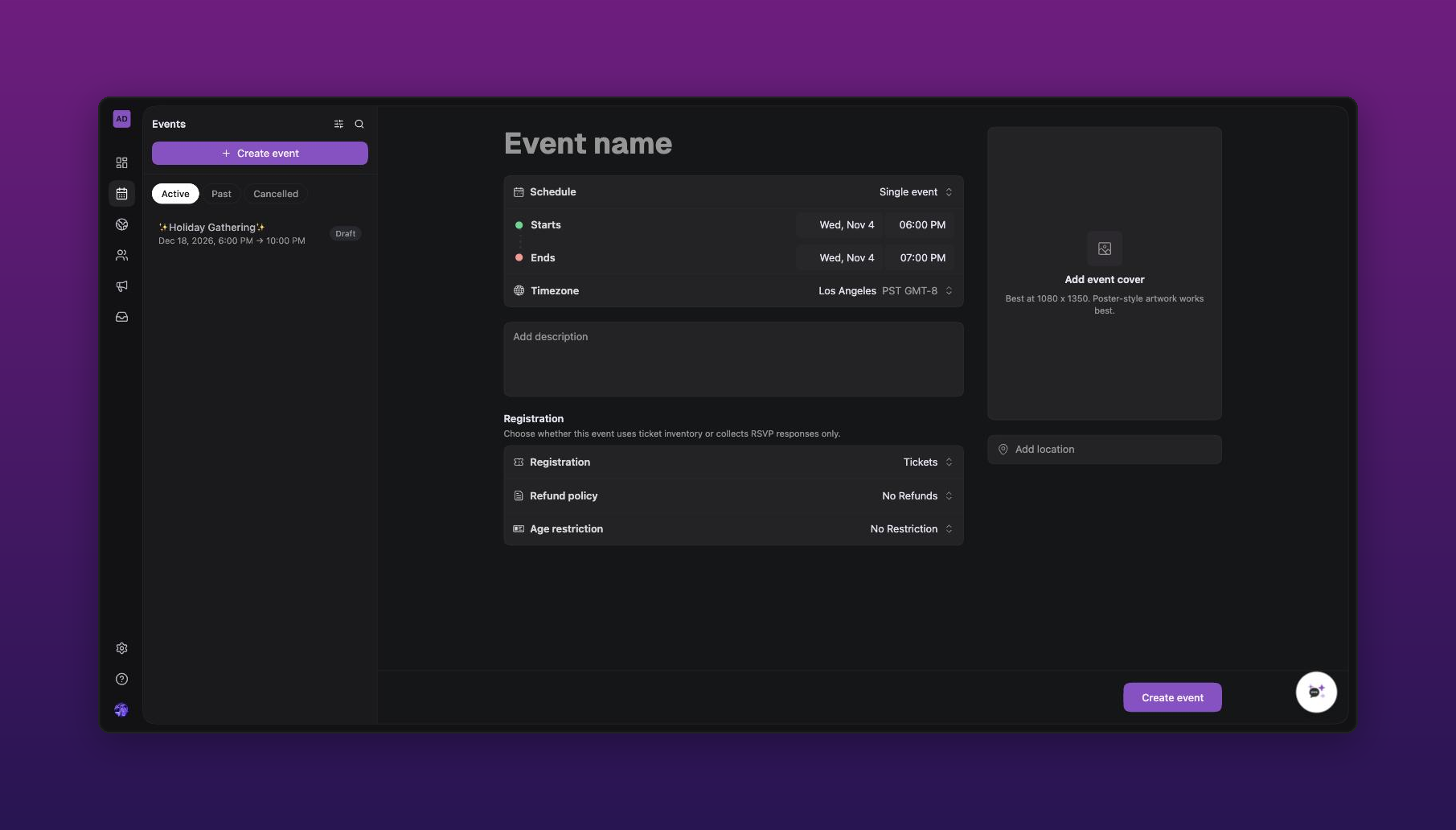
- Title. Click Event name at the top and type your event's title.
- Schedule. Choose Single event or Recurring event. A recurring event becomes an event series with multiple dates (see "Event instances" below).
- Date and time. Set Starts and Ends: click the date to pick a day and the time to pick a time.
- Timezone. It defaults to your local timezone. Change it if your event happens somewhere else.
- Description. Click Add description and write a short intro. You'll add more detail on the event page later.
- Registration. Choose Tickets (you manage ticket inventory, paid or free) or RSVP only (you just collect responses).
- Refund policy. Choose No Refunds or Contact Organizer. Ambrosia events are "no refunds" by default. If you offer refunds, spell out your policy in a Terms of Service (Terms of Service and liability waivers) or on your event page (Ambrosia policies).
- Age restriction. Choose No Restriction, All Ages, 18+ or 21+ (click Show more for other options).
- Event cover. Click Add event cover to upload your poster-style artwork. Best at 1080 x 1350 pixels (a 4:5 ratio).
- Location. Click Add location and start typing. Pick the right place from the suggestions and a map appears.
- Payout currency. Select the Stripe account and currency you'll be paid in. Need another? Click Need a different payout currency?
- Click Create event.
Your event opens on its Details page with a banner that says This event isn't published yet. It's a private draft until you publish it (Publish and share your event).
Editing the basics later
On the Details page, click the event title to rename it, or click the date under the title to change the start and end dates, times and timezone, then click Update.
Finding your events
The Events list has Active, Past and Cancelled tabs. Use the search icon to find an event by name and the sort icon to sort by Name, Start Date or Creation date.
Duplicate an event
Hover over an event in the list, click the … button and choose Duplicate. This is the fastest way to set up a repeat of a past event and is helpful if you have an event with a lengthy registration form.
Event instances (recurring events)
In an event series, open Event instances from the event menu and click Add an event instance for each date. Use this for recurring events or for the same event on different dates and times.

