
Give the door team access before they arrive
The best time to find out a volunteer signed in with the wrong email is while you still have time to help them. Ask each person working the door for an address they can open on the phone they’ll bring. Give everyone their own invitation so they can work from separate entrances or take over halfway through the event.
In Ambrosia Studio, open the event, then Settings → Access & sharing → Collaborators. Under Invite collaborator, enter their email, choose Check-in & sales, and click Invite. That role lets them scan tickets, look up guests and handle door sales. If you’re already at the venue, you can send the same invitation from the organizer app under Manage → Collaborators. Tap + to add someone.
Invite pending beside a name means the invitation is still waiting for that person. Ask them to accept it and find the event on their phone before their shift. The next section is the part to send them.
Accept the invitation and install the app
If you’re working the door, start in your inbox. Open Join the team for “[event name]” on Ambrosia, tap Accept Invitation, and sign in with the email your organizer invited. On the event invitation page, tap Accept invite.
You can work in the app or your phone’s browser. For the app, download Ambrosia events for iPhone on the App Store or Android on Google Play and sign in with that same account. If you see your own tickets, go to Settings → Switch to organizer.
Open Events and choose the event. For a series, choose the date of your shift. Scanner access takes you into the door tools. If you also manage the event and see its overview, tap Scan for a ticketed event. If you’d rather use the browser, accepting the invitation opens the web scanner. Your welcome email has the link to get back there.
Use a real arrival for the first scan
When the first ticketed member of your team arrives, meet them at the entrance and check them in together. This lets the person taking the shift see what a successful scan looks like before a line forms. Use someone who is actually arriving because scanning a QR code records a real check-in.
In the app, open Check-in. Tap Enable camera if prompted, allow access, and fit the guest’s whole ticket QR code inside the frame. Now open Attendees and find that person’s ticket. Checked in is the result you’re looking for. The organizer can see the same ticket’s scan time in Studio under Pulse → Attendees → Issued tickets.
When a guest arrives without their QR code
“Someone else bought my ticket” is a good moment to switch from the camera to the guest list. Open Attendees, search by name or email, and select the ticket for this date. Once you’ve matched the person to their ticket, tap Check in.
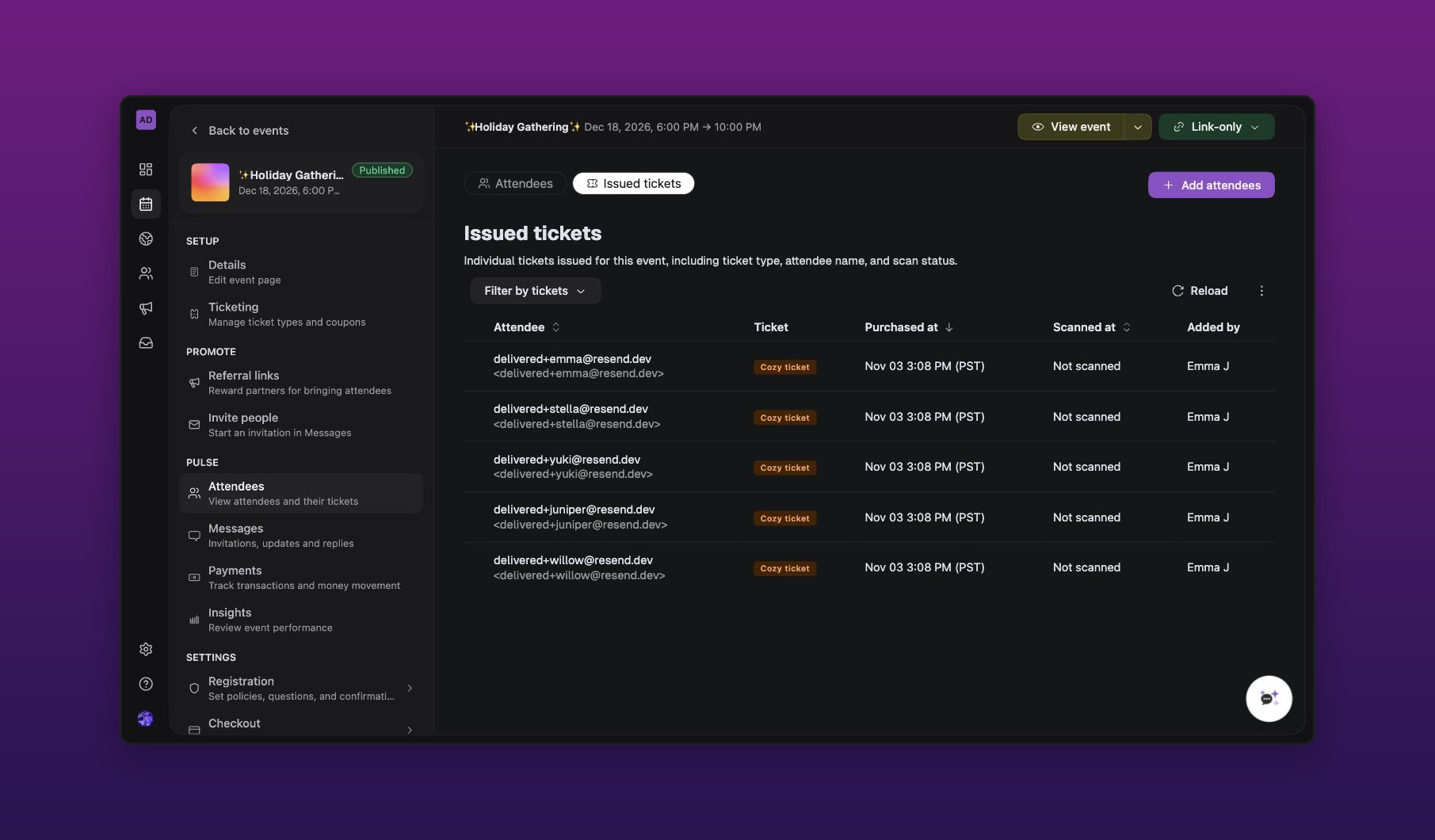
Suppose one person bought three tickets and only two friends are at the door. Check in the two who are present and leave the third ticket available. If the last friend later shows a code that’s already been scanned, the door lead can look at the individual tickets and scan times in the order. That tells them whether there’s still an unused ticket for that guest. Find individual tickets in Studio.
When the next person takes over
Let the incoming scanner handle one arrival while the outgoing scanner is still there. Show them who can look up an order if a guest needs a longer conversation. That way one person can help that guest while the other keeps welcoming people.
If the new scanner can’t see the event, start with the invitation. The organizer can check the email and pending status in Collaborators. For a mistyped address or an invitation that has passed its three-day expiry, choose Revoke invite and send a fresh one. If the invitation has already been accepted, check the account, workspace and event date on the phone.
If the event opens but the camera doesn’t, the scanner can use Attendees for check-in by name while they restore camera access for Ambrosia in their phone settings.

