
Overview
Click the gear icon at the bottom of the left sidebar. The Settings menu has two groups: Workspace (Email sending, Help & Support) and Policies (Terms of Service, Liability Waivers; see Terms of Service and liability waivers). The full Workspace Settings page has seven tabs across the top. Changes save automatically.
General
- Logo: the square with your workspace initials.
- Name (required): renaming doesn't change your events, but attendees may already know you by the old name.
- Public Profile URL (required): your
studio.ambrosia.events/your-nameaddress. Avoid changing it while events are live, because old links will break. - Public profile: choose Public or Private.
- Contact email (required): used for all communication with your attendees.
- Preferences > Start week on Monday: changes how every calendar in the Studio looks.
Collaborators
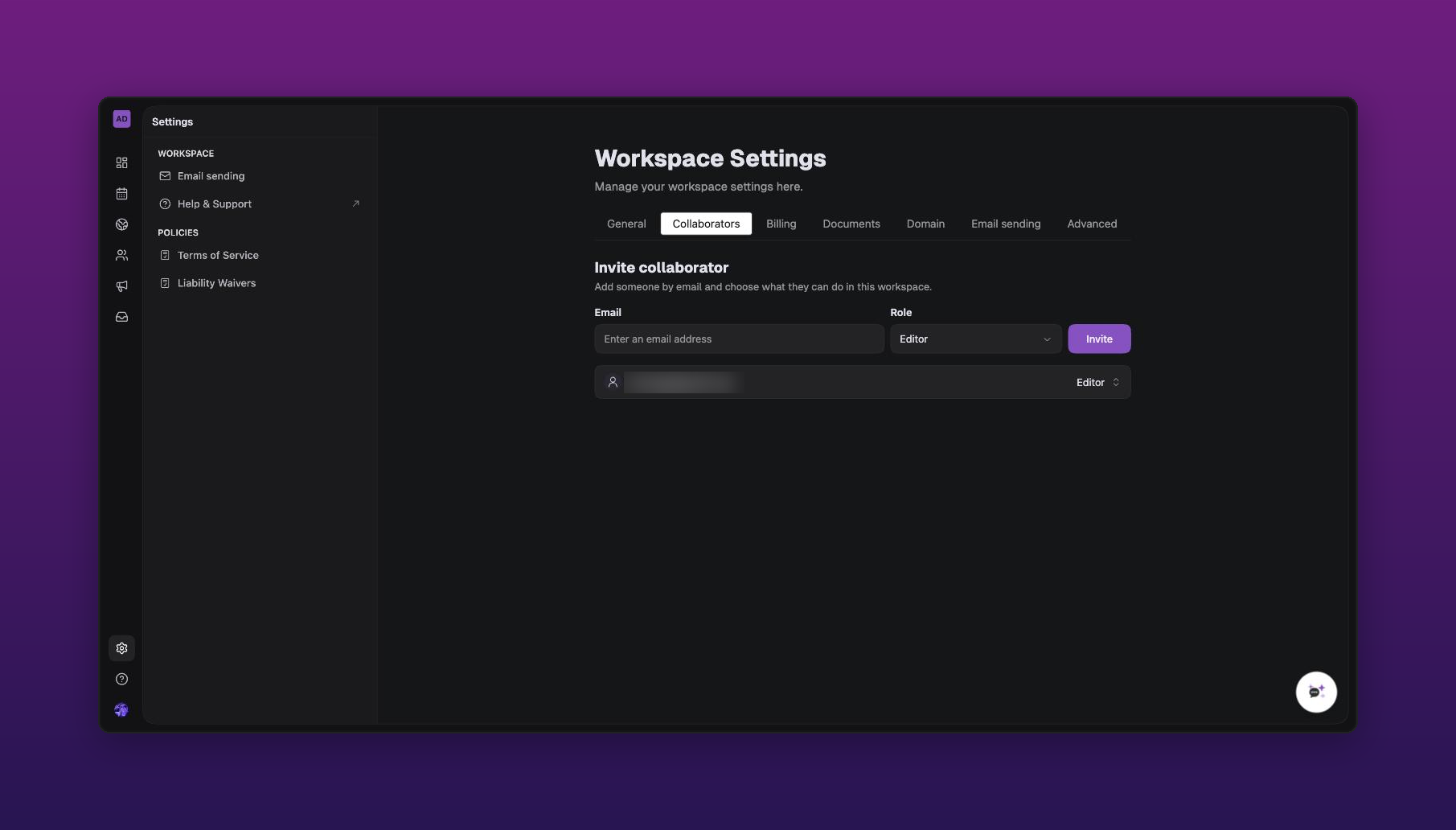
Invite teammates to the whole workspace. Type their email, pick a Role, then click Invite.
| Role | What they can do |
|---|---|
| Editor | Create new events and manage existing ones |
| Limited Editor | Manage existing events, but not create new ones |
| Viewer | View existing events only |
Need help on just one event, like ticket scanners or door staff? Invite them from that event instead (Running your event).
Billing
This is where you connect and manage Stripe, which is how ticket money reaches your bank.
- Account: shows your Stripe account status. When it reads Verified, you're ready to receive payments.
- In-person payments: add the places where your team takes payments in person. Click Add location, enter a Location name (it appears on the customer's payment prompt, for example "Pay Moon Retreats") and the Address, then Save location. The country is locked to your Stripe account. Mark one location as your default.
Documents
View and download tax documents, including 1099 forms, for each of your connected Stripe accounts.
Domain (beta)
This feature is not yet live. You'll be notified once it is and you may add your organization's email domain so emails to attendees come from your own address. Click Add a new domain, enter a Name and the Domain, then Add domain.
Email sending
Shows how much email you can send and how to send more. New workspaces start at the New level, and limits grow as you build a good sending record.
| Level | What unlocks | Monthly limit | Daily limit |
|---|---|---|---|
| New | Email your subscribers | 1,000 | 50 |
| Verified | Import your lists | 2,500 | 1,000 |
| Established | Send more each day | 2,500 | 2,500 |
To reach Established you need a first email that went well, 3 emails sent to subscribers, a month since your first send, 100 emails in the last 30 days, and few bounces or complaints. The page also tracks Monthly marketing emails (broadcasts, invitations and test emails all count; resets on the 1st of each month) and Invite and import room (new people you invite or import hold a place until they RSVP, open or click). Use Request more room if you run out.
Advanced
Delete entire workspace permanently removes the workspace and everything in it, including events and settings. Collaborators lose access and it can't be undone.

